
Review and publish
What you edit in the editor is saved to the draft. To show it on your published site, check the differences and then publish.
Before you begin
Section titled “Before you begin”- Your role can publish the site. If your role cannot publish, pressing [公開](Publish) shows 「このプロジェクトを公開する権限がありません。公開はプロジェクトのオーナーにご依頼ください。」(You do not have permission to publish this project. Please ask the project owner to publish.)
To publish the draft, do the following.
- At the right end of the top bar of the editor, press [公開](Publish). For a site you have published before, the button is [更新して公開](Update and publish).
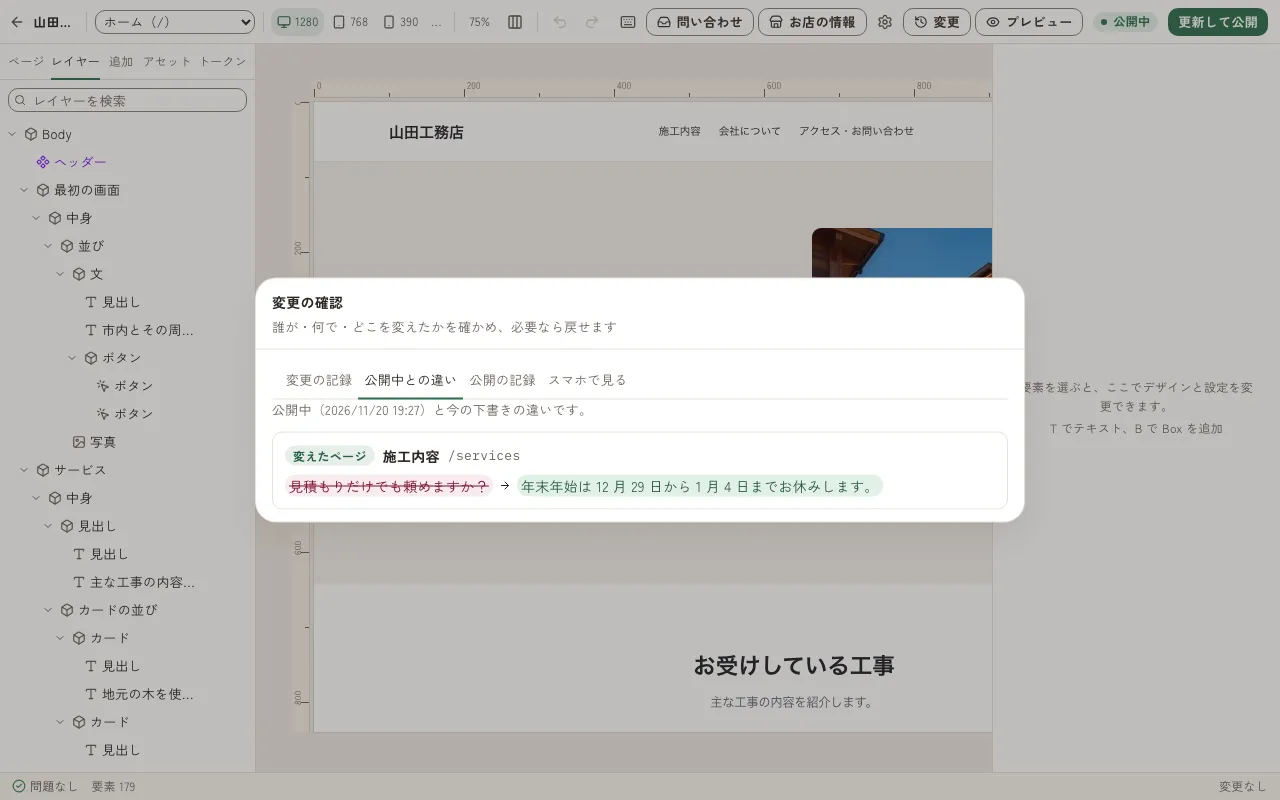
- On the 「公開中との違いを確かめる」(Check differences from the published site) screen (「公開の前に確かめる」(Check before publishing) when you publish for the first time), check what has changed (“How to read the differences” below).
- (Optional) Press [スマホで見る](View on phone) and check how the site looks on a phone (“Check on a phone” below).
- Press [この内容で公開](Publish this content) ([この内容で更新して公開](Update and publish this content) for a site you have published before).
The button changes to 「待機中…」(Waiting…) and 「ビルド中…」(Building…), and when it finishes, 「公開しました」(Published) appears.
How to read the differences
Section titled “How to read the differences”The review screen lists the differences between your published site and the current draft.
- Pages: Each page is marked 「足したページ」(Added page), 「消したページ」(Deleted page), or 「変えたページ」(Changed page).
- Text: The old text has a strikethrough, and the new text follows it.
- Images: 「前の画像」(Previous image) and 「新しい画像」(New image) appear side by side.
- Whole site: When you change site settings or shared parts such as the header, 「(すべてのページに効きます)」(Applies to all pages) appears.
- Appearance and order: These appear together as 「ほかに N か所(見た目、並びなど)を変えました。」(Changed N other places (appearance, order, and so on).)
If there are no differences, 「公開中のサイトと同じです。」(Same as the published site.) appears.
Check on a phone
Section titled “Check on a phone”Before you publish, you can open the current draft on your phone.
- On the review screen, press [スマホで見る](View on phone).
- Press [確認用の URL を作る](Create a preview URL).
- Scan the QR code that appears with your phone’s camera.
You can open the preview URL without logging in. It expires 24 hours after you create it. You can also copy the URL with [URL をコピー](Copy URL), or open it on your computer with [このパソコンで開く](Open on this computer).
Check the result
Section titled “Check the result”Press [公開中](Published) in the top bar to see your published site’s URL. Open the URL and check that your edits appear.
If something goes wrong
Section titled “If something goes wrong”- 「今日公開できる回数(N 回)に達しました。」(You have reached the number of times you can publish today (N).) appears: You have used up the number of times you can publish in a day. You can publish again from the date and time shown. Your published site stays as it is.
- 「公開に失敗しました」(Publishing failed) appears: Your published site stays as it is. Wait a moment, and then press [公開](Publish) again. If it keeps happening, contact us at Contact.