
Edit text and photos
In the editor, you select text or photos on the page and edit them right there. Your edits are saved automatically to the draft. Your published site does not change until you publish.
Before you begin
Section titled “Before you begin”- Your role can edit the site.
- You have opened the site from the dashboard and the editor is showing.
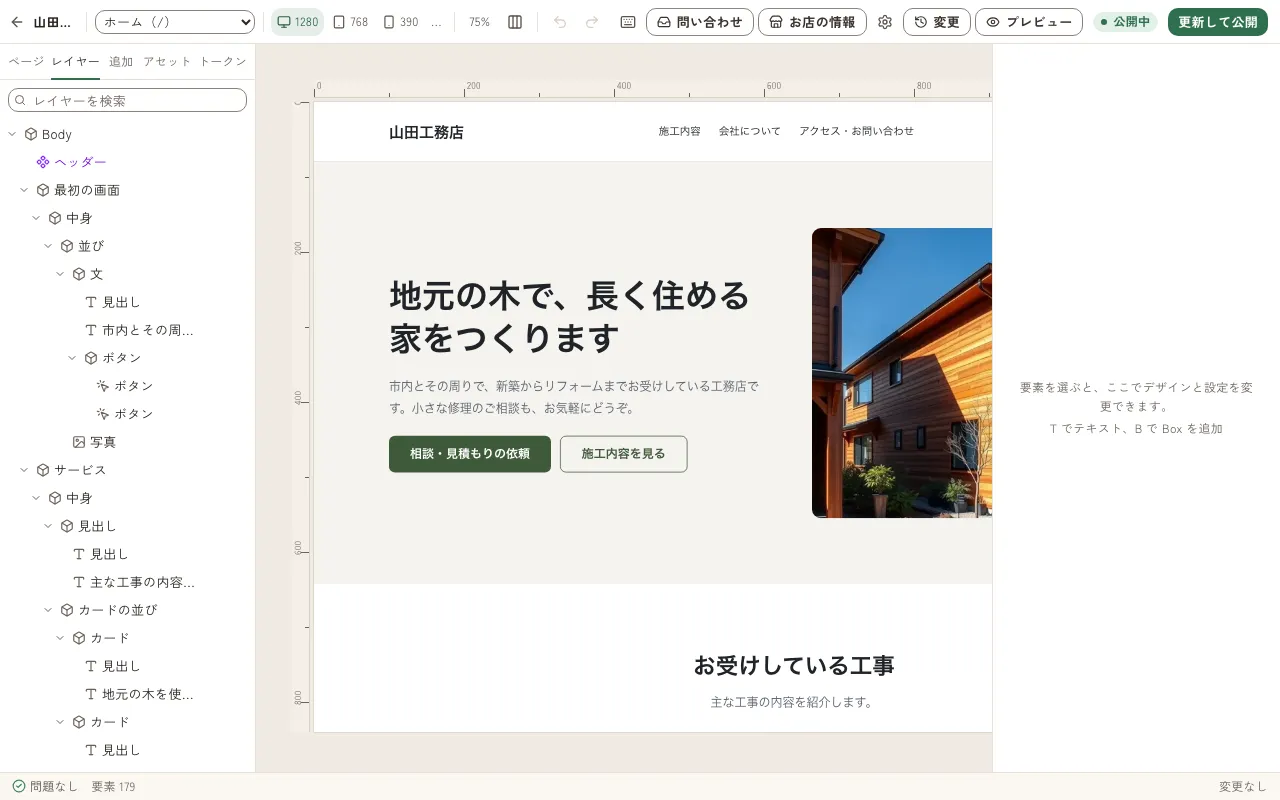
Edit text
Section titled “Edit text”- Double-click the text you want to edit. All of the text is selected.
- Type the new text.
- Click outside the text, or press Esc, to finish.
You can also start editing by clicking the text once to select it and then pressing Enter.
Replace a photo
Section titled “Replace a photo”You upload a photo to “assets” first, and then replace the photo.
- In the left panel, open [アセット](Assets).
- If you have not uploaded the photo yet, press [アップロード](Upload) and choose the photo. You can also upload a photo by dragging it onto the panel. Each image can be up to 50 MB.
- On the page, click the photo you want to replace to select it.
- In the [アセット] list, click the photo you want to use.
The photo you selected on the page is replaced with the photo you clicked in [アセット].
You can also choose a photo in the [画像](Image) section of [設定](Settings) in the right panel. In [代替テキスト](Alt text) in the same section, briefly describe what the photo shows. It is used by screen readers for people who are blind, and when the photo cannot load. If the photo is only decoration, leave it empty.
Change how a photo appears
Section titled “Change how a photo appears”In [画像の表示](Image display) under [デザイン](Design) in the right panel, change how the photo fits its frame.
- [合わせ方](Fit): Choose from [トリミング](Crop) (cut out to fill the frame), [全体](Whole) (fit the whole photo), or [引き伸ばす](Stretch).
- [トリミング位置](Crop position): Set where to cut out. You can also move it by dragging the ◎ that appears on the photo on the page.
Regenerate a photo with AI
Section titled “Regenerate a photo with AI”When AI is available, a [AI で写真を作る](Create a photo with AI) section appears under [デザイン](Design) in the right panel. Press [AI で写真を作り直す](Regenerate the photo with AI) to create a photo, using 1 of your AI uses. It takes about 20 seconds.
Check how it looks on a phone
Section titled “Check how it looks on a phone”Switch the screen width with the breakpoint buttons in the top bar.
| Breakpoint | Widths it applies to |
|---|---|
| PC | 841 px and wider |
| Tablet | 481–840 px |
| Mobile | 480 px and narrower |
The appearance you set on PC carries over to tablet and mobile. If you switch to tablet or mobile and then change the appearance, only that width changes. For photos too, you can choose a different photo for each width in [画像](Image) under [設定](Settings).
Press [元に戻す](Undo) in the top bar to undo your last action. Use [やり直し](Redo) to redo an action you undid.
| Action | Mac | Windows |
|---|---|---|
| Undo | ⌘Z | Ctrl+Z |
| Redo | ⌘⇧Z | Ctrl+Shift+Z or Ctrl+Y |
To undo saved changes one at a time, or to go back to a previously published state, use Undo changes or go back to a previous publish.
Check that your edits are saved
Section titled “Check that your edits are saved”Your edits are saved automatically about 1 second after you stop working. The save status appears in the bottom bar of the editor.
| Status | Meaning |
|---|---|
| 保存中… (Saving…) | Sending. |
| 保存済み (Saved) | Saved to the draft. |
| 未保存の変更あり (Unsaved changes) | There are changes not yet sent. |
| オフライン、同期待ち N 件 (Offline, N waiting to sync) | You are not connected to the internet. Your changes are kept on this device and will be sent when you reconnect. |
| 別の場所で更新されたため保存できません。 (Cannot save because it was updated elsewhere.) | Someone else or AI edited the same site at the same time. Press [再読込](Reload) to load the new content, and then edit. |